

When a prompt is flagged
Once you’re signed in, the extension works in the background. You only hear from it when a prompt contains something your organization protects. The prompt isn’t sent. Instead, a warning appears in the bottom-right corner of the page.
There are two kinds of warning. Which one you see depends on how your organization set up the data that was found.
Security Check: you decide
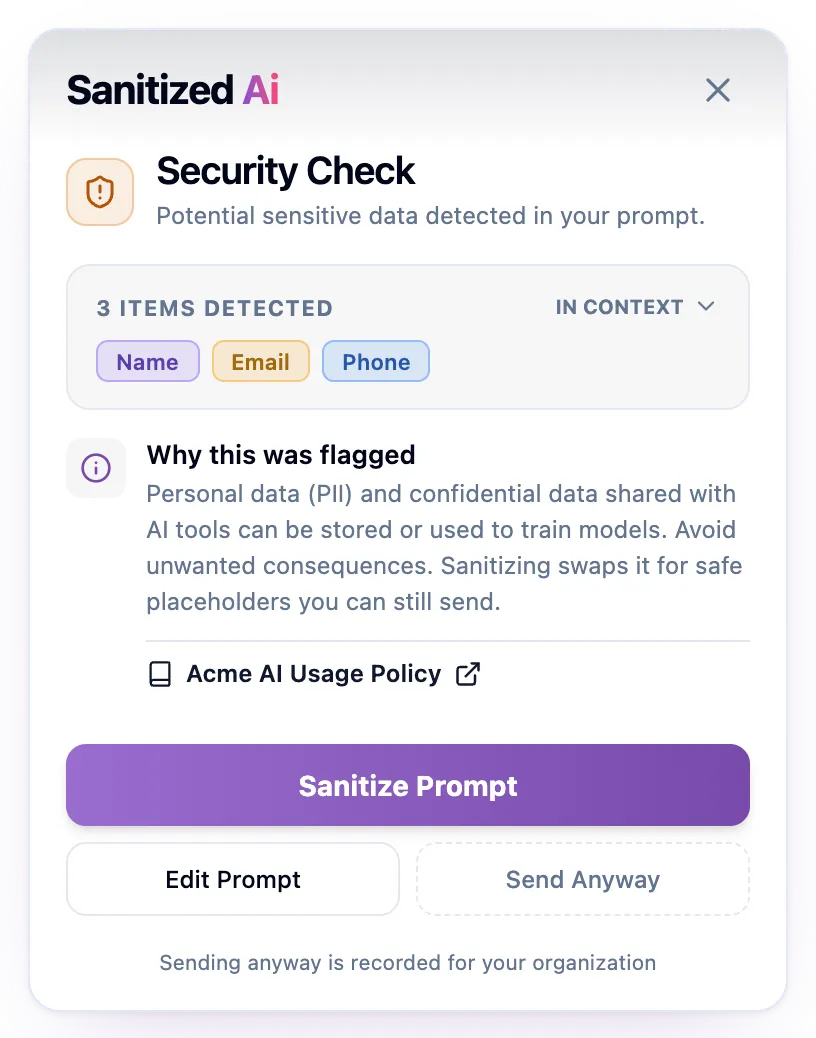
A Security Check is a warning. It lists what was found, for example 3 items detected with tags such as Name, Email, and Phone. To see where they are in your prompt, click In context.
You have three options:
- Sanitize Prompt: replace the sensitive parts with safe stand-ins. You see a preview before anything is sent. See Sanitize a prompt.
- Edit Prompt: close the warning and reword the prompt yourself. When you send it again, it’s checked again.
- Send Anyway: send the prompt as it is. Under the button, the warning says Sending anyway is recorded for your organization. Your admin can see that you sent a flagged prompt anyway, and which kind of data it contained. They can’t see the prompt itself.
To close the warning without sending anything, click the X.
Blocked by Policy: you can’t send it as is
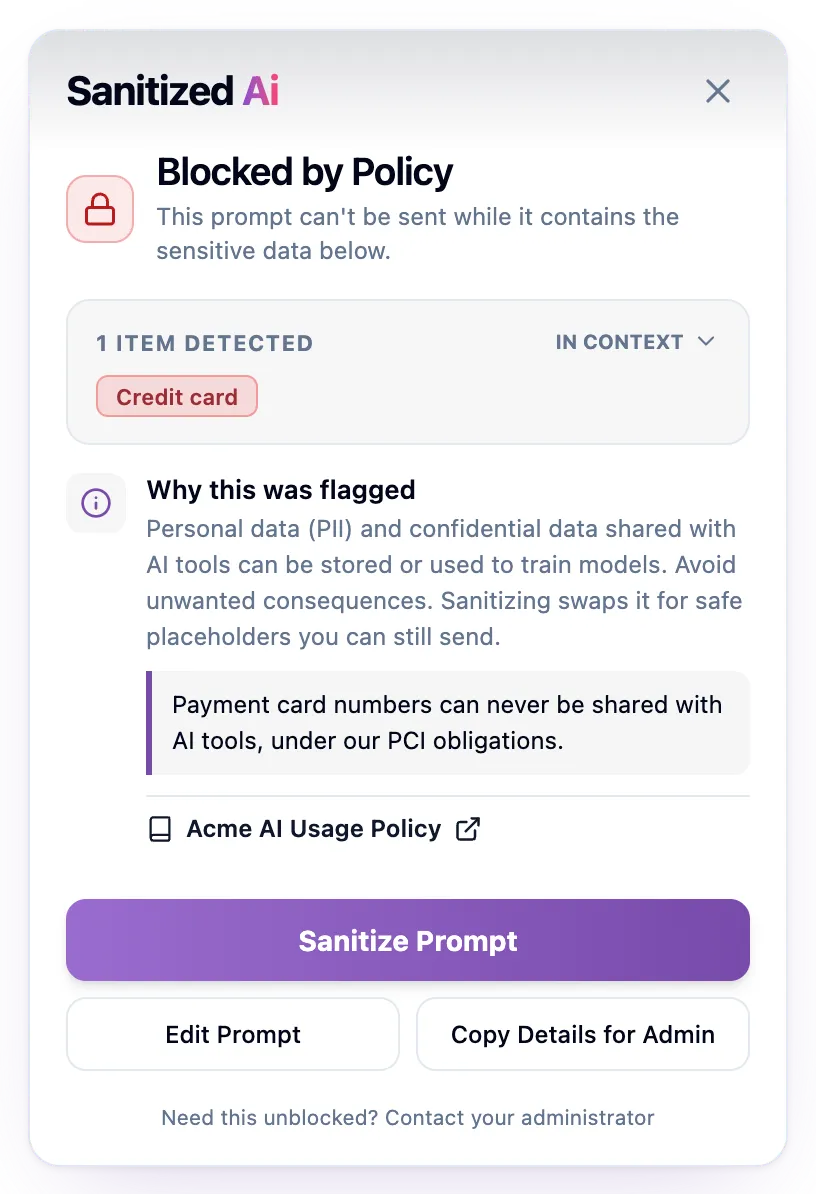
Some data must never reach an AI tool. For that data, the warning reads Blocked by Policy and there’s no Send Anyway button. You can still:
- Sanitize Prompt: usually the fastest way through. Once the sensitive data is replaced, the prompt is sent.
- Edit Prompt: remove or reword the flagged parts yourself.
If you have a real need to send the data, click Copy Details for Admin and paste the result into a message to your admin. It contains the website, the time, the name of the rule that was triggered, and the type of data found. It never contains your prompt. Your admin can grant an exception if the need is legitimate.
Why this was flagged
Every warning has a Why this was flagged section. It can also include:
- A note from your admin that explains the rule, for example Patient identifiers can never enter AI tools, per our privacy obligations.
- A link to your organization’s AI usage policy.
- When a prompt is blocked because it holds a long list of sensitive values, such as a customer export, a line that says so and gives the size, for example 200 or more different sensitive values. Your organization treats a list that size as a data export. Sanitize it, or send less at a time.
If you’re unsure why something was flagged, start there.
Sanitize a prompt
- In the warning, click Sanitize Prompt. A preview of the sanitized prompt appears.
- Optional: turn on Replace with Fake Data. Instead of placeholders such as
<PERSON>, the preview uses realistic stand-ins, such as a made-up name. AI tools often give better answers this way. - Choose what to do with it:
- Insert Sanitized replaces your prompt with the sanitized version and sends it.
- Copy Sanitized copies the sanitized version, so you can paste it and change it before sending.
- Go Back returns to the warning.
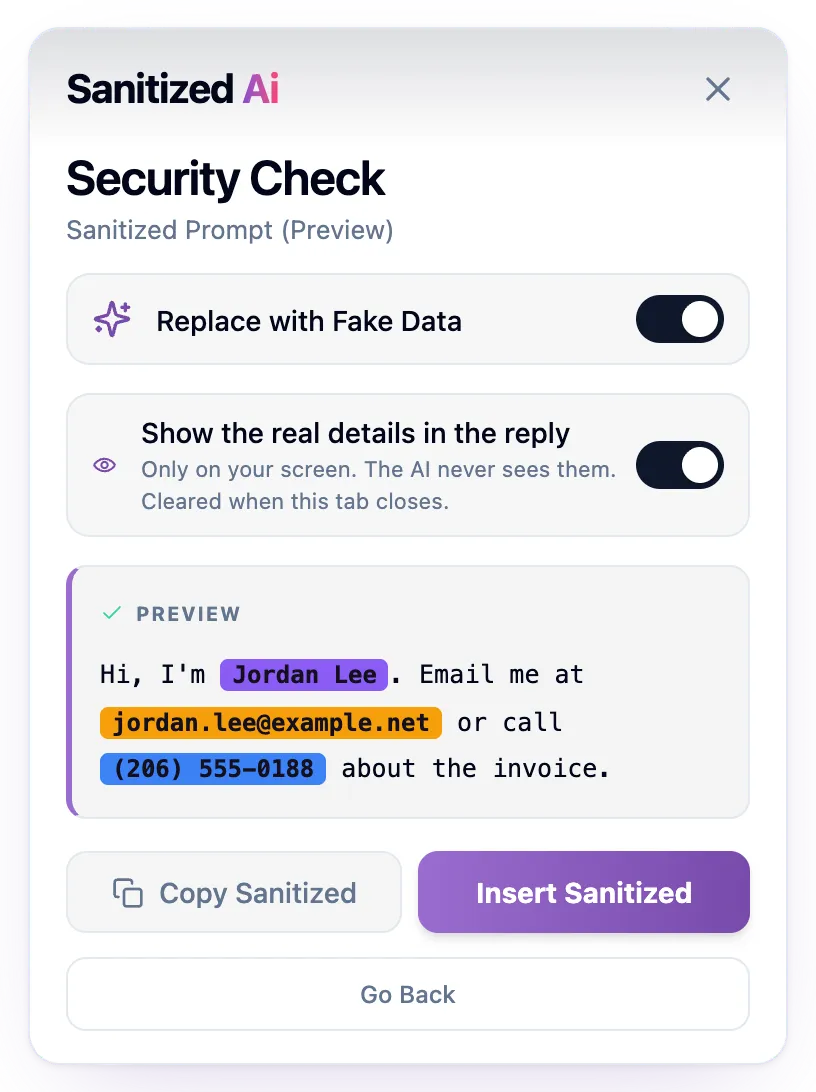
If you used fake data, the AI’s reply mentions the made-up details. Your organization can let the extension show your real details in the reply, on your screen only. See See real details in AI replies.
If you think a flag is wrong
A flag that isn’t sensitive is called a false positive. Reporting it helps your admins fix the rule.
- In the warning, click In context, and then click Report False Positive.
- All flagged items start selected. Clear any item that was flagged correctly.
- Optional: explain why, in a comment of up to 500 characters.
- Send the report:
- On a Security Check, click Report & Send Anyway. The report goes to your admins and your prompt is sent as it is.
- On a Blocked by Policy warning, click Report False Positive. The report goes to your admins, but the prompt stays blocked.
A message confirms that the report was sent to your admins.
The report includes the items you selected, with a little text on each side of them, and your comment. Your admins and the Sanitized AI team review reports to improve detection. The report doesn’t include your full prompt.
If the check can’t run
If Sanitized AI can’t be reached, you see Security Check Unavailable. Your prompt wasn’t sent. Click Edit Prompt and try again in a moment. If it keeps happening, reload the page or see Troubleshooting.
Send Without Scanning sends the prompt without checking it. Use it only if you’re sure the prompt contains nothing sensitive.
Why the same prompt can behave differently
- Different AI tools, different rules. Your organization can apply stricter rules on AI tools it considers riskier. The same prompt might show a Security Check on one tool and Blocked by Policy on another.
- How much you paste. Your organization can block a prompt or file that holds many different sensitive values, even when each one alone would only show a Security Check. One email is a warning; a pasted list of hundreds can be a block.
- Monitoring. Your organization can choose to record some data without showing you a warning. The prompt is sent, and the event is recorded.
- Exceptions. Your admin can exempt a person or a department from some rules, for example a legal team that works with client names.
- Websites that aren’t protected. The extension only checks AI websites your organization protects. The toolbar icon shows a green dot on those.